





How do I add, swap or remove a section?
ANSWER
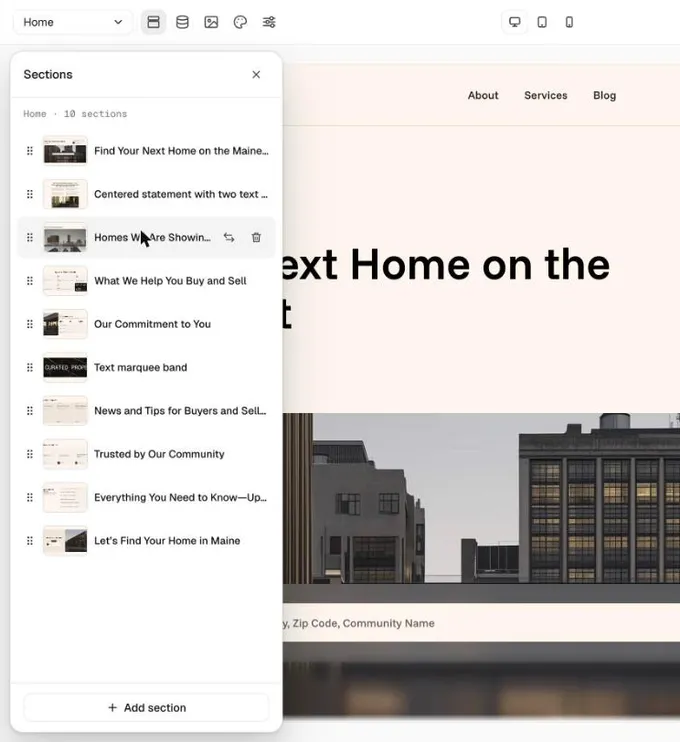
Open Sections in the Loonis editor's top bar. Add a section from the library for free, swap one for another for 4 credits, or move and delete sections. Every change is saved as a version you can undo.
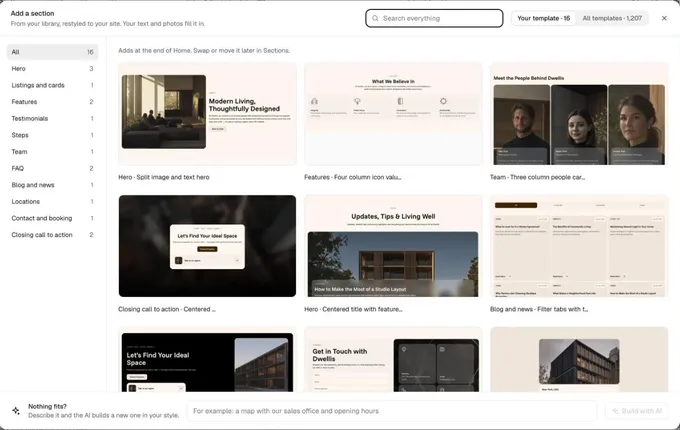
Add a section
- Click "Sections" in the top bar, then "Add section" at the bottom of the panel.
- Browse "Your template" or "All templates", by kind: Hero, Features, Testimonials, FAQ and more. Click "Preview" to see a section full size.
- Click "Add". It goes at the end of the page, restyled to your site, and your text and photos fill it in. Move it in Sections.
- Nothing fits? Describe what you need under "Nothing fits?" and click "Build with AI". This uses 4 credits.
Swap a section
- In Sections, hover a section and click "Swap". Or click the section on the page and use the swap icon in its toolbar.
- Sections of the same kind come first, from your own template. Pick one and click "Use this". A swap uses 4 credits.
Move or remove a section
- In Sections, drag a section by its handle, or use the arrow keys. On the page, use the move up and move down icons.
- To remove one, click "Delete" and confirm. Undo it with the "Undo" button in the top bar.
Good to know
- Adding from the library, moving and deleting are free.
- Every change is checked on desktop and mobile before it's saved.
Still stuck?
Email hello@loonis.co, we reply within 2 business days.