





How do I connect my own AI agent to Loonis?
ANSWER
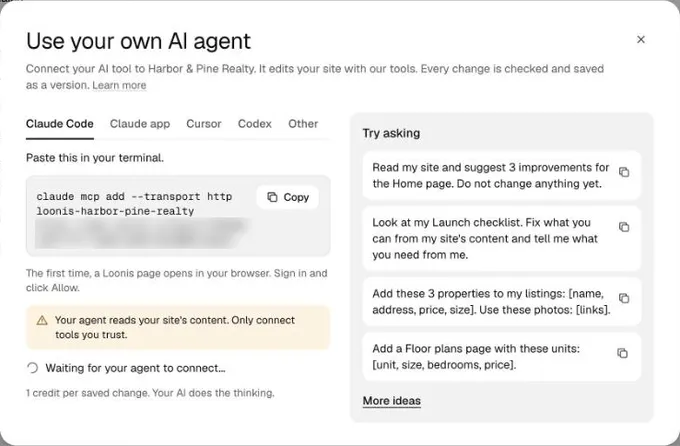
On Pro or Premium, open "Use my own AI agent" in the Loonis editor, copy the command for Claude Code or the address for the Claude app, then sign in and click "Allow". Each change your agent saves uses 1 credit.
Steps
- Open the connect window: "Use my own AI agent" on the "How do you want to start?" card, or Site settings, "Own AI agent", "Connect an agent".
- Claude Code: on the Claude Code tab, copy the command and paste it in your terminal.
- Claude app: on the Claude app tab, copy the address. In the Claude app, open Settings, then Connectors, then Add custom connector. Name it exactly as the window shows (it starts with loonis-) and paste the address.
- The first time, a Loonis page opens in your browser. Sign in, check what the agent can and can't do, and click "Allow".
- Go back to your AI tool and ask for a change. It shows in your editor, checked and saved as a version you can undo.
Good to know
- Pro allows 2 agents per site and Premium 5. Each connection is for one site.
- Reading your site, failed checks, dropped changes and undo are free.
- Your agent can't publish your site, change domains, plan or billing, or see your leads.
- The window also has tabs for Cursor, Codex and other MCP tools.
- To stop an agent, open Site settings, "Own AI agent" and click "Disconnect".
Still stuck?
Email hello@loonis.co, we reply within 2 business days.