





How do I set my page's search title and description?
ANSWER
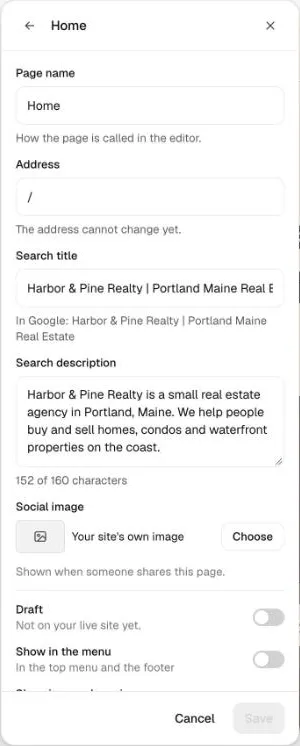
Open the page menu in the Loonis editor, click the settings icon next to a page, and change its "Search title" and "Search description". Loonis writes a first version for every page when it builds your site.
Steps
- Click the page menu at the top left of the editor. The Pages panel opens.
- Click the settings icon next to the page.
- Change the "Search title". The line under it shows how it looks in Google.
- Change the "Search description". The counter shows how many of 160 characters you used.
- Optional: choose a "Social image", shown when someone shares the page.
- Click "Save", then publish to put it live.
Site-wide settings
Open Site settings, then "Search and sharing":
- Title format: how page titles and your site name are joined, for example "Contact | Your business".
- Default social image: used when a page has no image of its own. Best at 1200 × 630.
- Let search engines find this site: turn it off while you're still working on the site.
Good to know
- Turn off "Show in search engines" in a page's settings for pages like a thank-you page.
- Changing search settings is free.
Still stuck?
Email hello@loonis.co, we reply within 2 business days.